Running Ollama on AMD Ryzen AI Max, using Alibaba Cloud Session Manager without exposing the server to the public internetMany people discuss “Chinese AI” from the outside.
They compare benchmark scores, read company announcements, and debate whether Chinese models are catching up with or surpassing American models.
My approach is simpler:
Before forming an opinion, I want to use the technology myself.
I recently built a local AI server in my Shenzhen office using a Windows PC equipped with:AMD Ryzen AI Max+ 395128 GB of unified memoryRadeon 8060SQwen3–32B Q4_K_MOllama on WindowsQwen3–32B runs with 100% GPU offload and generates roughly 10 tokens per second.
Getting the model to run was only the first step.
The more important question was:How can I continue operating and maintaining this machine while travelling outside China?A local AI server is not very useful if someone in the office must log in every time Windows restarts, Ollama stops, or a new model needs to be installed.
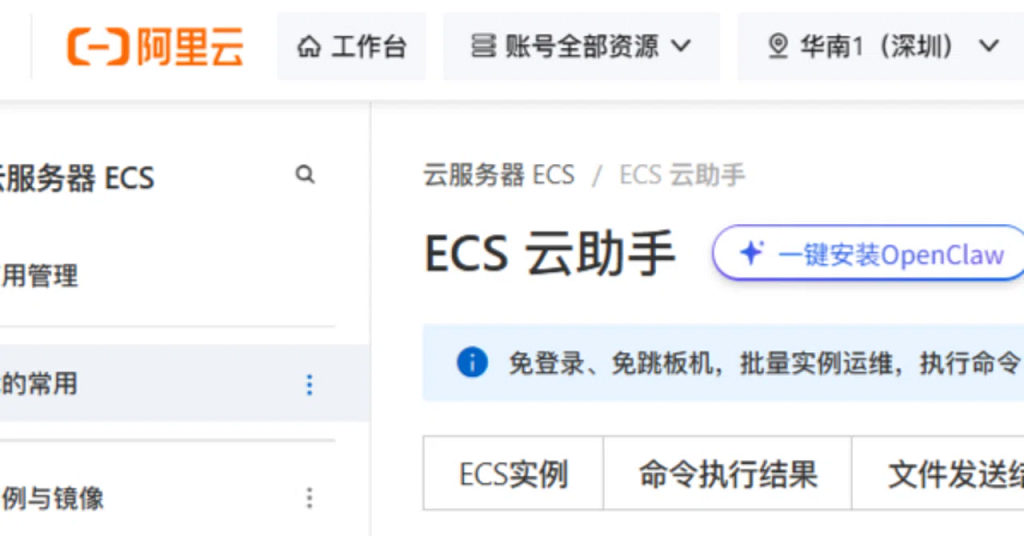
So I built a remote-management environment using Alibaba Cloud Session Manager.
Cloud AI is still more convenient for normal conversationsI do not expect this local server to replace cloud AI services.
When the internet connection is stable, cloud models are usually faster, more capable, and easier to use. I do not need to maintain drivers, inference software, services, or model files.
This Shenzhen machine has a different purpose.
I want to use it as a persistent worker for long-running and repetitive tasks, including:Collecting publicly available technical information from Chinese websitesOrganizing Chinese technical material in JapaneseChecking translation repositoriesProcessing large archives of documentsGenerating possible blog topics and draftsRunning tasks without constantly calculating token costsFor this kind of use, access to an inference API is not enough.
I also need to inspect logs, restart services, update scripts, replace models, and recover the machine after a reboot.
In other words, the difficult part of local AI is not inference.
It is operations.The architectureThe basic structure is:External Windows PC | | Cherry Studio / PowerShell / SSH v 127.0.0.1:21434 | | ali-instance-cli | Alibaba Cloud Session Manager v Shenzhen AI PC Windows 11 / 128 GB memory | ├─ 127.0.0.1:11434 │ | │ └─ Ollama │ | │ └─ Qwen3-32B │ Radeon 8060S / 100% GPU │ └─ Cloud Assistant Agent | └─ Remote shell and maintenanceOn my travel PC, Cherry Studio connects to:http://127.0.0.1:21434The model is not running locally.
ali-instance-cli forwards that local port through Alibaba Cloud Session Manager to Ollama on the Shenzhen PC:127.0.0.1:11434Ollama continues to listen only on localhost.
I do not expose its API directly to the public internet.Why I did not rely only on Remote DesktopI already had Remote Desktop access to the Shenzhen machine.
However, RDP from overseas into China can have significant latency. It is useful when I need to operate a GUI, but it is not an ideal tool for maintaining a background service.
It also does not solve unattended operation.
If Windows restarts and Ollama starts only after a user logs in, the machine is not functioning as a real server.
I now use different tools for different jobs:Session Manager shell: System inspection and emergency maintenancePort forwarding to Ollama: AI inference APIPort forwarding to SSH: Files, Git, scripts, and model maintenanceRemote Desktop: GUI operations when necessaryThis is much more practical than trying to do everything through a remote desktop window.Registering a physical Windows PC with Alibaba CloudThe Shenzhen machine is not an Alibaba Cloud ECS instance.
It is an ordinary physical Windows 11 PC connected to the office network.
I installed Alibaba Cloud’s Cloud Assistant Agent and registered the machine as a Managed Instance.
The agent establishes an outbound encrypted connection to Alibaba Cloud.
That means I do not need:A public IP addressRouter port forwardingA publicly exposed Ollama portA publicly exposed SSH serviceI can open a PowerShell session through the browser or connect from an external PC using ali-instance-cli.
The Windows shell provided by Session Manager runs as:NT AUTHORITY\SYSTEMThis is useful because it allows me to inspect services, processes, scheduled tasks, ports, logs, and Ollama even when nobody is logged in.
It also means that the Alibaba Cloud credentials used to open the session must be protected like administrator credentials.Using a dedicated Alibaba Cloud RAM accountI did not use the AccessKey of my main Alibaba Cloud account.
Instead, I created a dedicated RAM user for remote maintenance.
The test policy included:{ “Version”: “1”, “Statement”: [ { “Effect”: “Allow”, “Action”: [ “ecs:StartTerminalSession”, “ecs:DescribeUserBusinessBehavior” ], “Resource”: “*” } ] }Initially, I allowed only:ecs:StartTerminalSessionThe CLI returned a 403 error because it also checked:ecs:DescribeUserBusinessBehaviorbefore starting the session.
For a personal test environment, this was sufficient. For serious production use, I would also consider temporary credentials, stricter resource restrictions, credential rotation, and detailed audit logging.
The AI server itself is separated from my normal office environment. I do not intend to store email, cloud-storage, or other business credentials on it.Forwarding Ollama through Session ManagerOllama listens on the Shenzhen PC at:127.0.0.1:11434I forward it to port 21434 on my external Windows PC:.\ali-instance-cli.exe portforward -i "<managed-instance-id>"
-r 11434 `
-l 21434The CLI then displays:Waiting for connectionsFrom another PowerShell window, I can test the connection:Invoke-RestMethod -Uri “http://127.0.0.1:21434/api/tags"The response includes the models installed on the Shenzhen machine, such as:qwen3-32b:latestCherry Studio can then use the following configuration:Provider: Ollama
API Host: http://127.0.0.1:21434
API Key: Blank
Model: qwen3-32b:latestFrom Cherry Studio’s perspective, it looks like a local Ollama server.
The actual inference happens in Shenzhen.The same tunnel can carry SSHSession Manager port forwarding is not limited to Ollama.
If SSH is enabled on the Shenzhen PC, I can also forward port 22:.\ali-instance-cli.exe portforward -i "<managed-instance-id>"
-r 22 `
-l 2222Then connect from the external machine:ssh -p 2222 localhostThis gives me a convenient way to work with:Git repositoriesModel filesScriptsConfigurationLogsLong-running jobswithout publishing SSH to the internet.Making Ollama run without a Windows loginRemote access solved only half of the problem.
The normal Windows installation of Ollama usually runs inside a logged-in user session.
After a reboot, if Windows remained at the login screen, Ollama was unavailable.
I therefore created a Windows Scheduled Task that starts Ollama at boot under the SYSTEM account.
The first attempt failed because SYSTEM uses a different Windows profile:C:\WINDOWS\system32\config\systemprofileOllama could not find the same model directories and environment settings used by my normal account.
I solved this by explicitly defining the required environment variables inside a CMD wrapper.@echo off set “OLLAMA_MODELS=C:\AI\models\ollama” set “OLLAMA_HOST=127.0.0.1:11434” set “HOME=C:\Users<windows-user>” set “USERPROFILE=C:\Users<windows-user>” set “LOCALAPPDATA=C:\Users<windows-user>\AppData\Local” set “APPDATA=C:\Users<windows-user>\AppData\Roaming"ping 127.0.0.1 -n 31 >nulcd /d “C:\Users<windows-user>\AppData\Local\Programs\Ollama"“C:\Users<windows-user>\AppData\Local\Programs\Ollama\ollama.exe” serve 1»“C:\AI\logs\ollama-headless-stdout.log” 2»“C:\AI\logs\ollama-headless-stderr.log"The script waits about 30 seconds after boot so that the GPU driver and related Windows services have time to initialize.
After registering the task, I confirmed that Ollama was running as:UserName : NT AUTHORITY\SYSTEM SessionId : 0And ollama ps showed:NAME SIZE PROCESSOR CONTEXT qwen3-32b:latest 22 GB 100% GPU 8192Qwen3–32B now runs on the Radeon 8060S even when nobody is logged in to Windows.Remote model replacementA local AI server should not be permanently tied to its first model.
New Qwen releases will appear. Some tasks may work better with smaller models, different quantizations, coding models, translation models, or different context lengths.
With the remote-management environment in place, I can connect to the Shenzhen machine and download new GGUF files directly from ModelScope.ModelScope | | Download model v C:\AI\models\gguf | | Create or update Modelfile v Ollama | | Register model v Remote test through Session ManagerThis is much more efficient than downloading a large model to my travel laptop and then uploading it back to China.
Long downloads can be launched as Scheduled Tasks or other background processes, allowing them to continue after the interactive Session Manager session has closed.Why Alibaba Cloud rather than AWS?AWS Systems Manager Session Manager provides a similar architecture.
For organizations already operating on AWS, using IAM, CloudTrail, and Systems Manager may be the natural choice.
I chose Alibaba Cloud for this experiment because:The physical machine is in ShenzhenI confirmed that the setup works on this Windows 11 PCConnectivity inside China is convenientModelScope and ModelStudio are part of the same broader ecosystemI can use the same Alibaba Cloud account and prepaid balanceThe Session Manager configuration created no additional cost in this testThe best choice depends on where the machine is located and which cloud environment the organization already uses.Local AI becomes useful only after it becomes operableGetting a local model to answer its first prompt is exciting.
But that alone does not create useful infrastructure.
A practical local AI server must also:Recover after a rebootRun without a user loginProduce readable logsAllow remote inspectionSupport service restartsPermit model replacementExpose only the required network servicesRemain isolated from unrelated accounts and credentialsThat operational layer took more effort than the first inference test.
Now the Shenzhen machine can remain active while I travel.
The next step is to give it real work: collecting public Chinese technical information, organizing it in Japanese, checking translation projects, and generating material for future articles.
I am not trying to replace cloud AI.
I am building a persistent AI worker inside the Chinese technology ecosystem.
There is a great deal of discussion about Chinese AI.
But I believe the best way to understand it is not only to read about it.
Build with it. Operate it. See what actually happens.
The original Japanese article is available here: